
Many users will eventually be moving away from Amazon's Fire TV devices due to the continual drive towards blocking 3rd party apps via sideloading and using their own Vega OS on new devices like the Fire TV Selekt.
Android/Google devices aren't doing this. So get yourself a decent Android device like the Onn Box (in America/Canada) or the European equivalent which is the Thomson 270/240 etc. which ironically are all available on Amazon in Europe but I am sure you can find them in other places too.
Anyway let's get down to installing Downloader on your Android/Google TV

- On Android TV just click on the Google Play Store and search for Downloader. Make sure it is the version by AFTV then follow the instructions further down to setup
- On Google TV
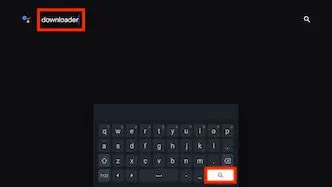
- Select Apps from your Top Menu and then click in the SearchBar underneath

- Type in Downloader then hit Search
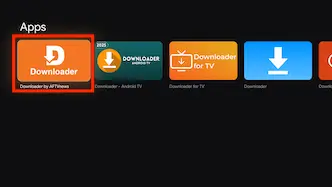
- Select Downloader by AFTV News from the list (there are many clones but none are as good so ensure you choose that one)
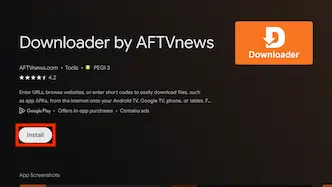
- Select Install
- Select Open

- Select OK when popup appears

- OK Downloader is installed but we still need to make sure that you can download items using Downloader Codes. We just need to do these next few steps which will only need to be done once and then Downloader will install any app without any problems
- Leave Downloader and go back to your Homescreen and select Settings
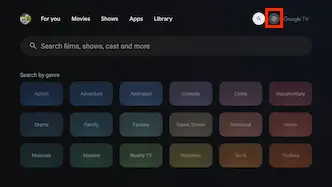
- Select All Settings (if necessary)

- Select System
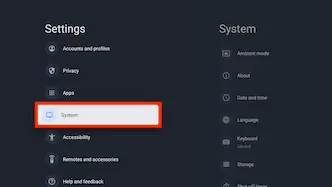
- Click on About
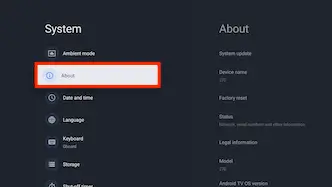
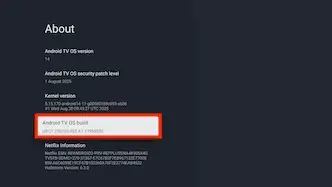
- Click on Android TV OS Build 7 times until it says you are a Developer
- Now go back to your Homescreen Apps and open Downloader. The following steps will happen when you first put in a Downloader code. So [choose yourself a Downloader code from here] the page will open in a seperate tab so you can easily come back
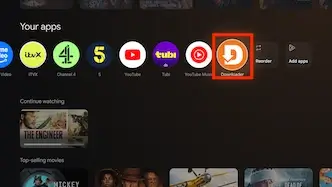
- Click on the Click here to enter a search term... section located at the top

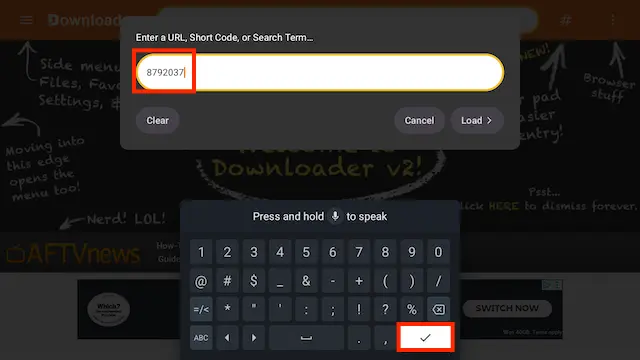
- Type in the Downloader Code you have chosen for the app you wish to install and hit the Enter button (usually a tick).
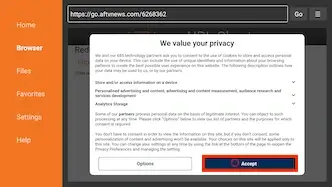
- You will have to hit Accept here
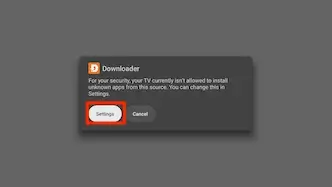
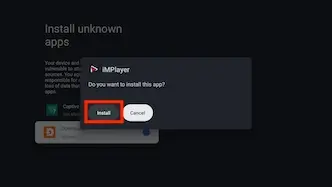
- You will now get a Security Popup saying that you are not currently allowed to Install Unknown Apps. Click on Settings
- Allow Downloader to Install Unknown Apps
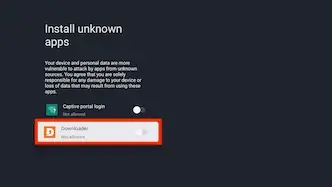
- You can now install the app you were trying to install and Downloader will be allowed to install anything else you want without having to jump through hoops
[More Downloader Codes can be found here]
Legal Disclaimer: This tutorial is purely educational. Seo-Michael.co.uk doesn’t own, host, operate, resell, or distribute any streaming apps, addons, websites, IPTV or services. The page contains some unverified services, and we are not certain whether they hold legal licenses to distribute the content. Seo-Michael.co.uk does not verify the legality of each app/service in all regions. Do your due diligence if you use any of the unverified apps/services, and stream only content that is available in the public domain. The end-user shall be solely responsible for the media accessed.