
The Homelander add-on for Kodi offer Movies, TV Shows
Below is a guide for installing the Homelander add-on for Kodi. This is a 3rd party add-on so please do not post questions about this add-on in the official Kodi forums.
Works best with a Debrid account. If you don't already have a Torbox or Debrid account [Get TorBox account here] or a [Debrid account here]
VPN Offers from IPVanish
[Use the link below] to find good deals from IPVanish.

If you are installing an add-on for the first time or installing on a fresh install of Kodi you need to turn on Unknown Sources instructions follow this paragraph. If you have already turned it on then just [Jump to the guide]
- Open Kodi
- Select Settings (cog icon top left)

- Select System

- Scroll down to Add-ons and move to the right and click on Unknown sources

- You will see a popup warning about giving access. Click Yes

- Now go back and click on Updates

- Change Install updates automatically to Notifiy, but don`t install updates (this means you can see when updates are available and update the ones you want)

How to Install Homelander on Kodi for Firestick or Android Device:
- Go to the Kodi home screen & select Settings (cog icon top left)
- Select File Manager
- Select Add Source
- Select None
- Type the following EXACTLY
https://unhingedthemes.github.ioand select OK
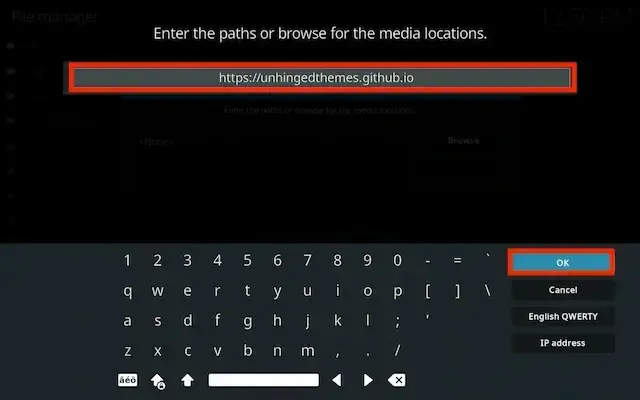
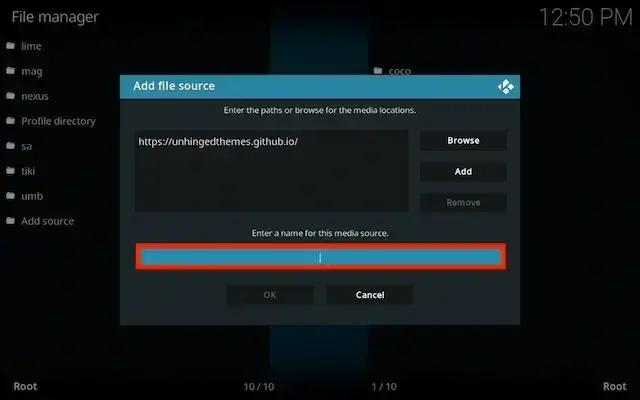
- Click the box underneath marked Enter a name for this media source
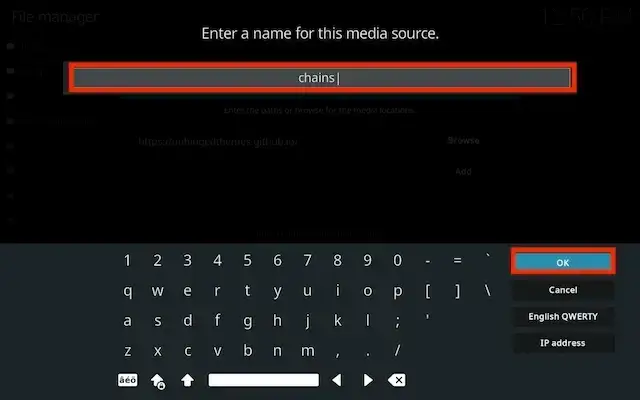
- Type chains then click OK
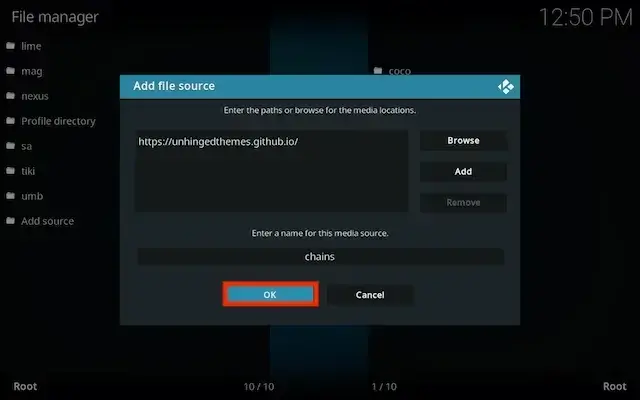
- Select OK
- Click back on your remote/keyboard
- Select Add-ons

- Select Install from zip file

- Select chains (or whatever you named it)
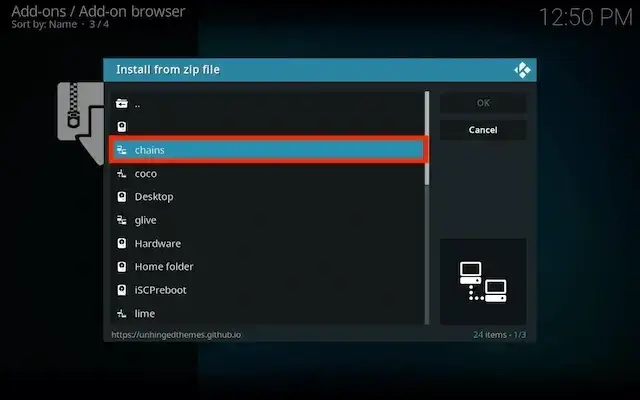
- Select repository.chainsrepo-x.x.xx.zip
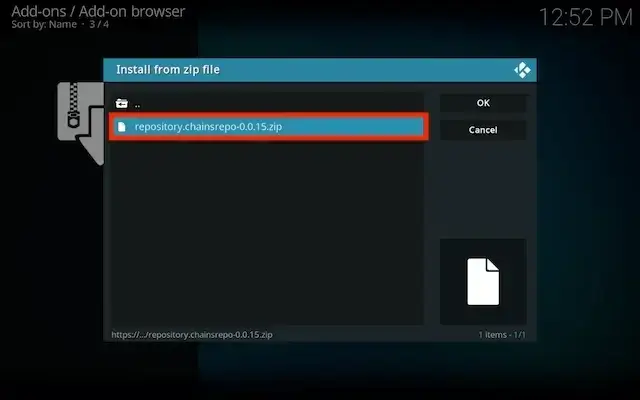
- Wait for the Add-on enabled notification
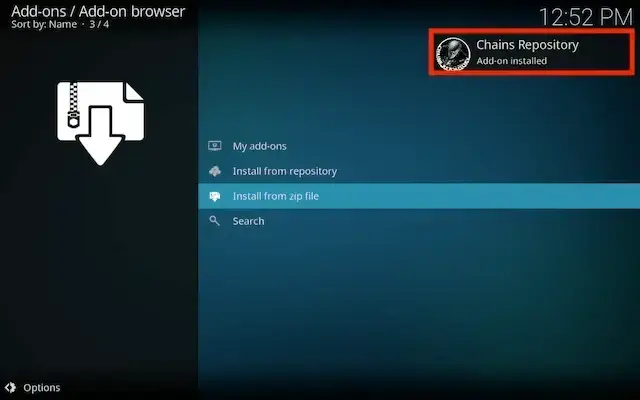
- Select Install from Repository

- Select Chains Repository
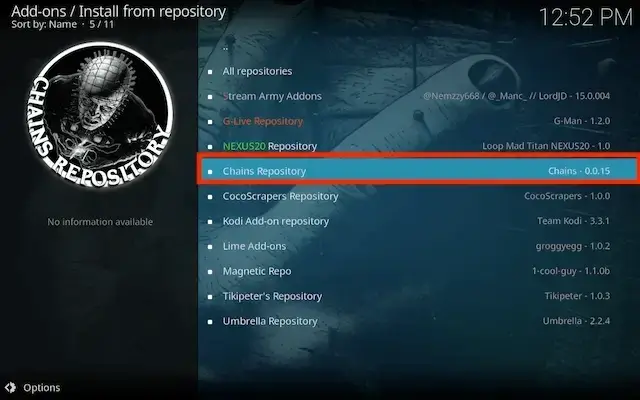
- Select Video add-ons
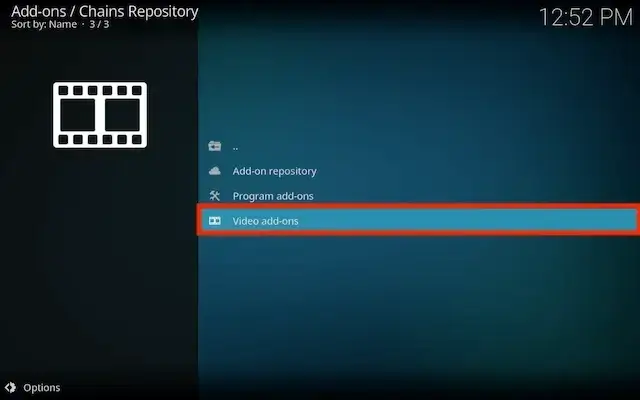
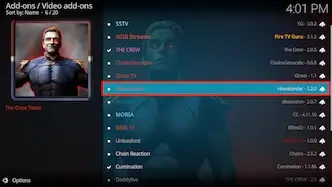
- Select Homelander
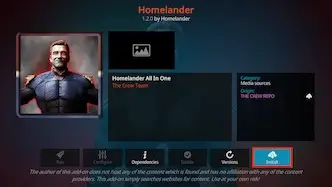
- Select Install
- Select OK if necessary
- Wait for Add-on installed notification
- Once you see the add-on installed notification it is ready to use and will be available in your add-ons section
How to Setup Debrid in Homelander for Kodi
- Open HomeLander
- Select Tools
- Select SETTINGS: Accounts
- Scroll down and select the SECOND instance of Accounts
- Select Authorize in Real-Debrid
- Follow the on screen instructions. If done correctly the message will disappear and your Debrid service should work
VPN Offers from IPVanish
Use the link below to find good deals from IPVanish.
[More Kodi Add-Ons Available Here]
Legal Disclaimer: This tutorial is purely educational. Seo-Michael.co.uk doesn’t own, host, operate, resell, or distribute any streaming apps, addons, websites, IPTV or services. The page contains some unverified services, and we are not certain whether they hold legal licenses to distribute the content. Seo-Michael.co.uk does not verify the legality of each app/service in all regions. Do your due diligence if you use any of the unverified apps/services, and stream only content that is available in the public domain. The end-user shall be solely responsible for the media accessed.