
Below is a guide for installing the Black Lightning add-on for Kodi. This is a 3rd party add-on so please do not post questions about this add-on in the official Kodi forums.
Black Lightning Offers: 1 Click, New Movies, TV Shows, Trakt Integration, Debrid/Premiumize/Torbox integration
Works best with a Debrid account. If you don't already have a Real Debrid account you can get one from here.
- Protect your browsing data with a verified no-logs VPN
- Encrypt your connection to any Wi-Fi network
- Securely access streaming services & live sports
- 30 Days Money Back Guarantee
Use the link below to find good deals from IPVanish.

How to Install Black Lightning Build on Kodi:
- Open Kodi
- Select Settings (cog icon top left, if already using a custom build you will need to find settings in somewhere like System > Settings)

- Select File Manager
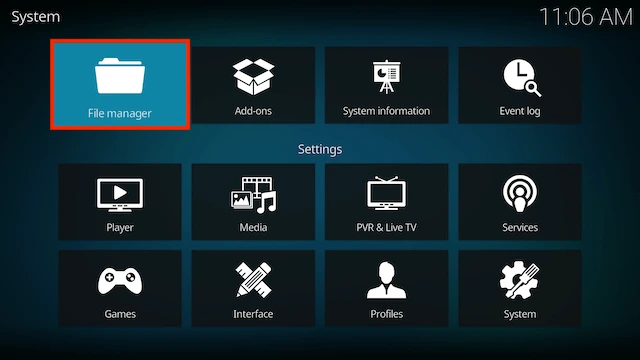
- Select Add Source

- Select None

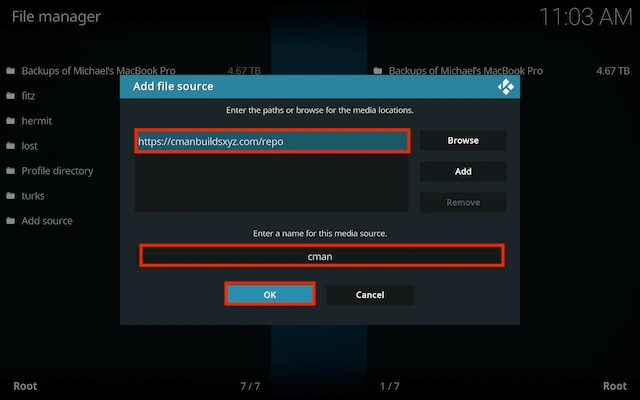
- Type the following EXACTLY
https://cmanbuildsxyz.com/repothen highlight the box underneath marked Enter a name for this media source. Type cman then click OK
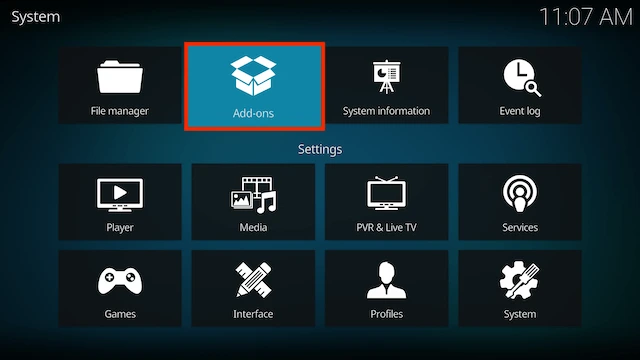
- Press back once your remote/keyboard and select Add-ons
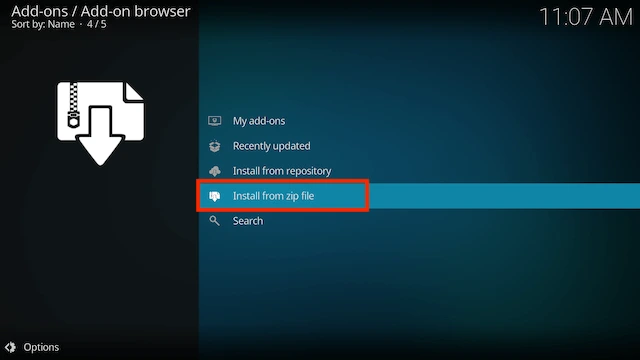
- Select Install from zip file
- Select cman
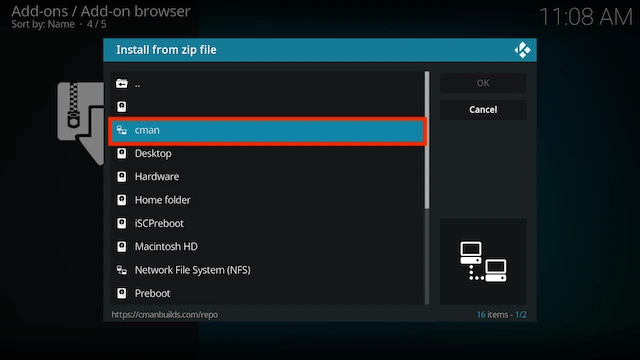
- Select repository.cMaNWizard-x.x.zip
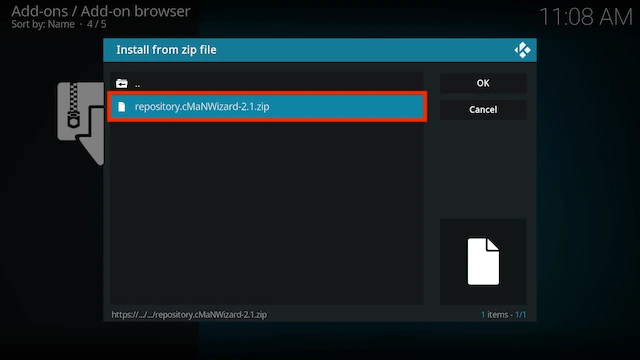
- Wait for the Add-on enabled notification
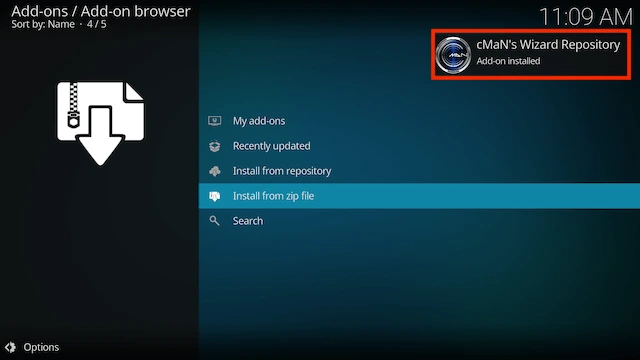
- Select Install from Repository
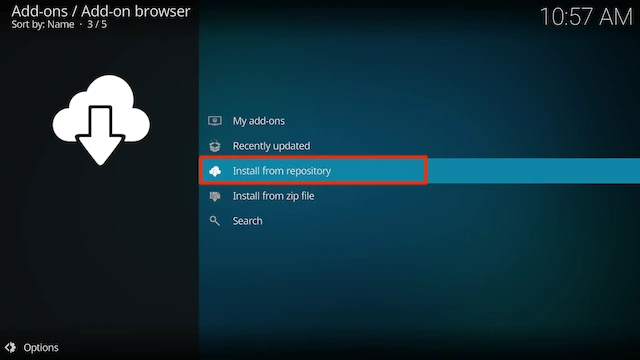
- Select cMaN's Wizard Repository
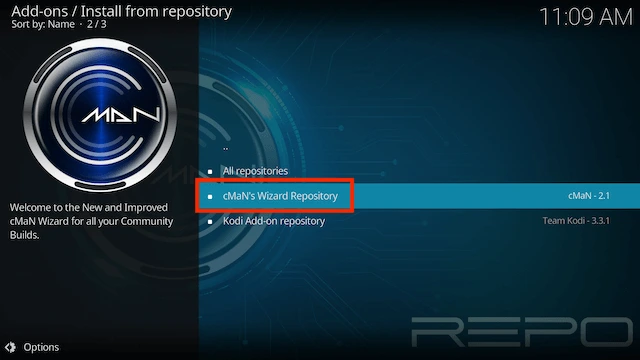
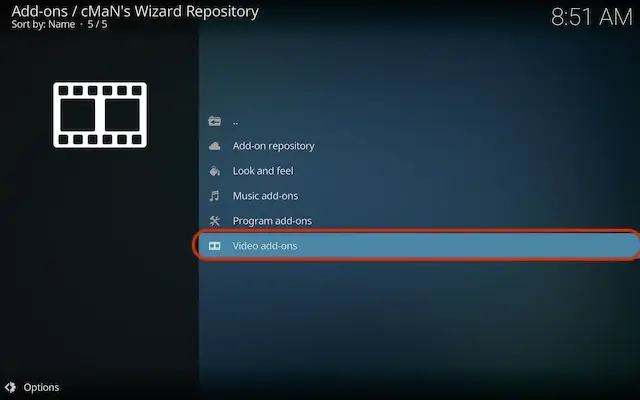
- Select video add-ons
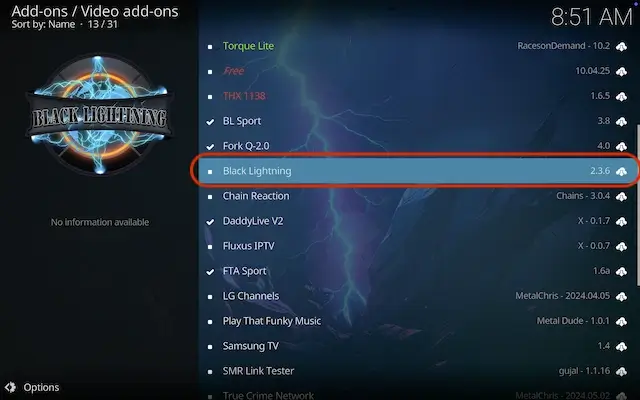
- Select Black Lightning
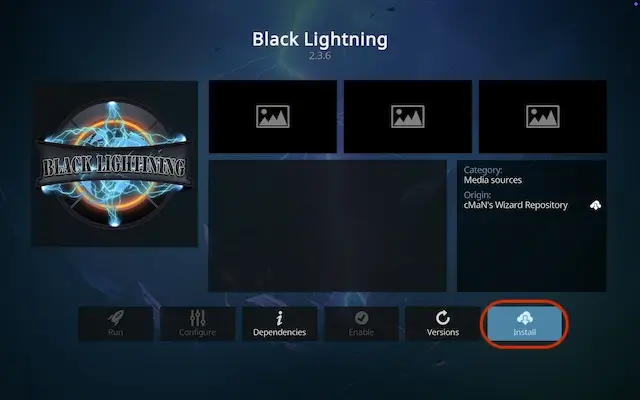
- Select Install
- Select OK
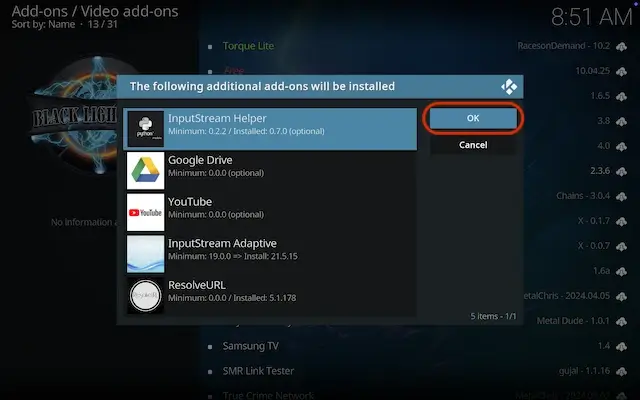
- Wait for the Add-on enabled notification
- The add-on will now be available in your Video Add-Ons section
- Protect your browsing data with a verified no-logs VPN
- Encrypt your connection to any Wi-Fi network
- Securely access streaming services & live sports
- 30 Days Money Back Guarantee
Use the link below to find good deals from IPVanish.
More Kodi Add-Ons Available Here
Legal Disclaimer: This tutorial is purely educational. Seo-Michael.co.uk doesn’t own, host, operate, resell, or distribute any streaming apps, addons, websites, IPTV or services. The page contains some unverified services, and we are not certain whether they hold legal licenses to distribute the content. Seo-Michael.co.uk does not verify the legality of each app/service in all regions. Do your due diligence if you use any of the unverified apps/services, and stream only content that is available in the public domain. The end-user shall be solely responsible for the media accessed.
