
LAUNCHER MANAGER IS CURRENTLY BLOCKED BY AMAZON SO THIS WON'T WORK NOW. I'LL UPDATE WHEN THE DEV HAS DONE A FIX FOR IT
IF YOU ARE THE TYPE OF PERSON THAT DOESN'T HAVE A LOT OF PATIENCE THEN THIS IS NOT FOR YOU AS WE WILL BE INSTALLING DOWNLOADER (THOUGH MANY WILL ALREADY HAVE IT), ADBLINK ON YOUR MAC/PC, A CUSTOM LAUNCHER & LAUNCHER MANAGER. IF YOU LIKE TINKERING AND WANT THE FEATURES LISTED BELOW THEN GO GET A BREW, BEER, JOINT OR WHATEVER
THIS GUIDE USES DOWNLOADER. IF YOU DO NOT HAVE DOWNLOADER INSTALLED PLEASE USE THIS GUIDE FIRST
The guide below will show you how to block OTA updates from Amazon on your Fire TV Devices running FireOS 7 or 8.
This will allow:
- Disable OTA firmware updates
- Use a custom launcher
- Disable Amazon's app blacklist
- Prevent Amazon from restricting more apps with protected status
- Access any system files
System status is temporary (lost after reboot), however changes made are kept. This privileged access will be lost unless you block OTA firmware updates!
- Protect your browsing data with a verified no-logs VPN
- Encrypt your connection to any Wi-Fi network
- Securely access streaming services & live sports
- 30 days money back guarantee
Use the link below to find good deals from IPVanish.

We'll break the guide into 3 parts so if you already have say ADBLink installed or already have a custom launcher still installed but isn't currently working you can just skip to the part of the guide you need.
HOW TO INSTALL ADBLINK ON YOUR COMPUTER
- To use ADBLink on your FireTV Device we need to know the local IP of your device. So on your home screen select SETTINGS (THE COG) > My Fire TV > About > Network. Take note of your local IP
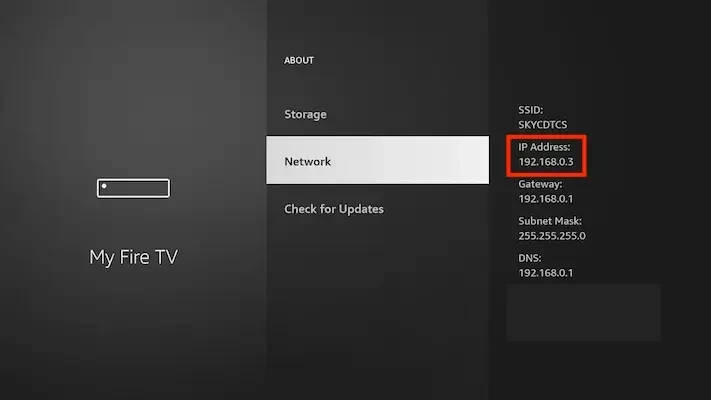
- On your Mac/PC go to the ADBLink website
- Scroll down and choose the download that is applicable to you (Windows, macOS, Linux) and install it
- Open ADBLink and you will see something similar to this. Click on New
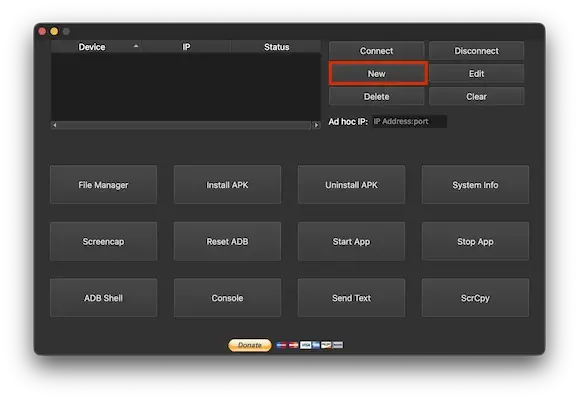
- You will now see the new input screen
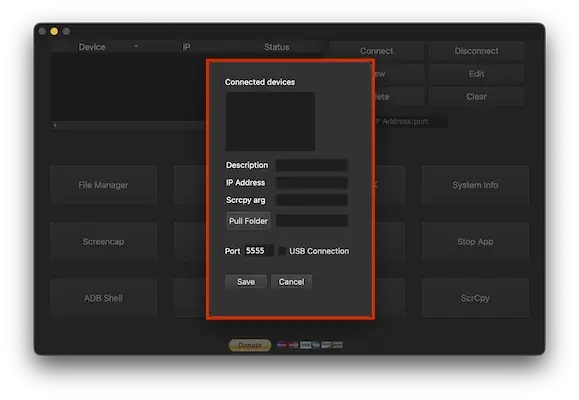
- Enter a name (Firestick or whatever) and then enter the local IP we noted earlier and click Save
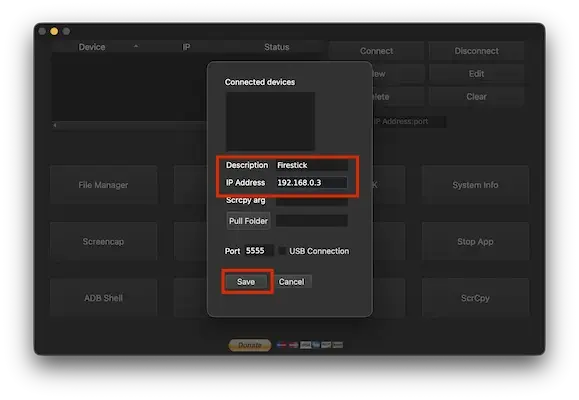
- Now click on Firestick (or whatever you named it) and then select Connect
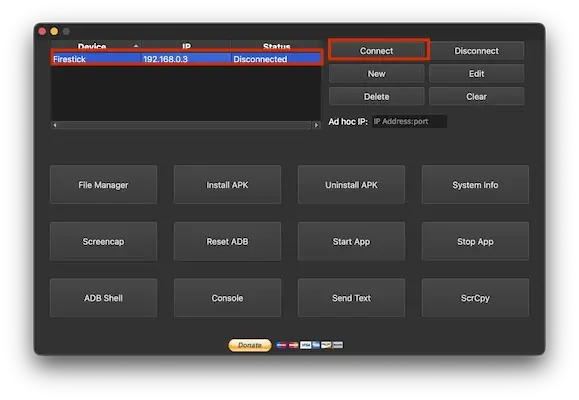
- If you have never done this before you should now see a prompt on your TV or Monitor (Wherever the Fire TV Device is plugged into.) asking for USB Debugging to be allowed. Click on Always allow on this computer then select ALLOW
- You should now see that it is connected through ADBLink. But if you have not done this before it will say Unauthorised so just click on Connect again
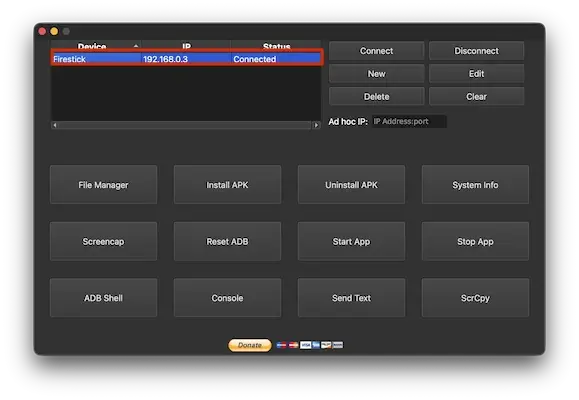
- So that's all good so we can now move on to installing a custom launcher
How to Install a Custom Launcher for Fire TV Devices
- For this guide I will be using Projectivy Launcher. I will provide more Downloader codes at the end for other launchers if you would like to try them
- Launch your Firestick
- Open Downloader
- Use your remote to highlight the Enter a URL or Search Term: section
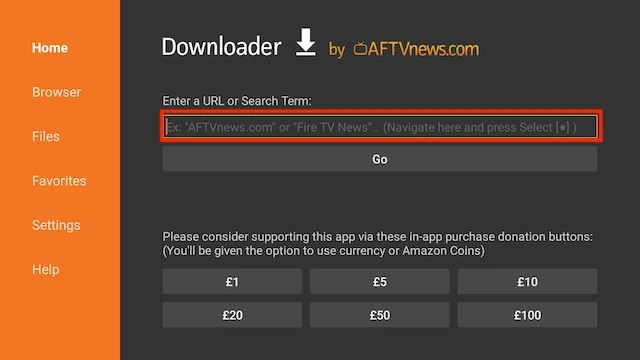
- Enter the following code
5351741and then click Go
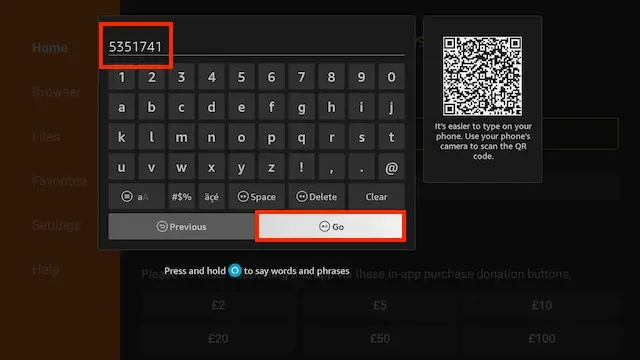
- The file will start to download. If you see a notification saying it thinks you are a bot then turn off your VPN and try again. You may also see a privacy popup and unfortunately if you can't scroll down after clicking options you will have to select accept which may mean clicking on Home at the left and downloading again and selecting Accept
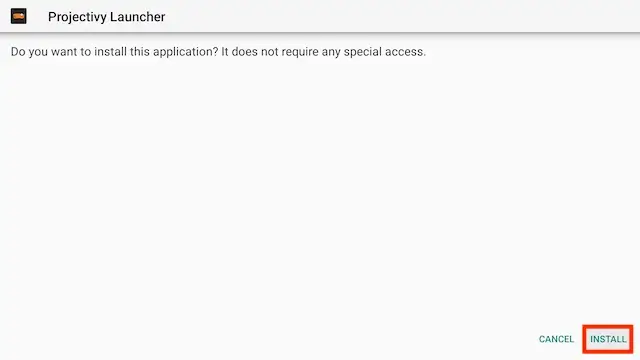
- You will be asked if you want to install it. Select INSTALL
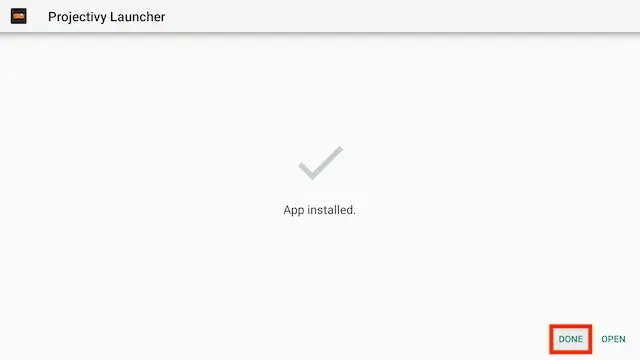
- Select Done (we are going to delete the installation file to save space on your stick)
- Select Delete

- Select Delete again

- OK we are all set here. Now we can move on to installing Launcher Manager
How to Install Launcher Manager for Fire TV Devices
- Launch your Firestick
- Open Downloader
- Use your remote to highlight the Enter a URL or Search Term: section
- Enter the following code
2510153and then click Go

- The file will start to download. If you see a notification saying it thinks you are a bot then turn off your VPN and try again. You may also see a privacy popup and unfortunately if you can't scroll down after clicking options you will have to select accept which may mean clicking on Home at the left and downloading again and selecting Accept
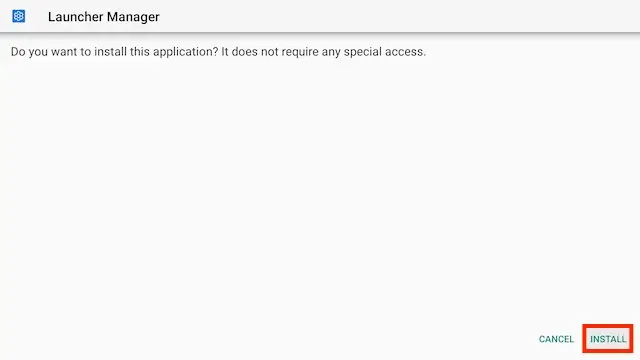
- You will be asked if you want to install it. Select INSTALL
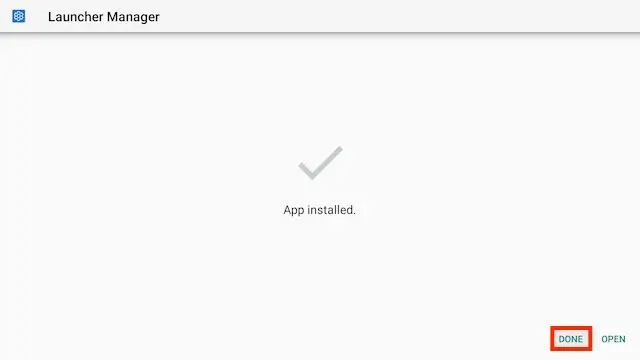
- Select Done (we are going to delete the installation file to save space on your stick)
- Select Delete
- Select Delete again
- OK we are getting there. We are minutes away from finishing. Are you bored yet? Don't worry, we're finished very soon.
- Open ADBLink again
- Connect to your Firestick
- Select ADB Shell
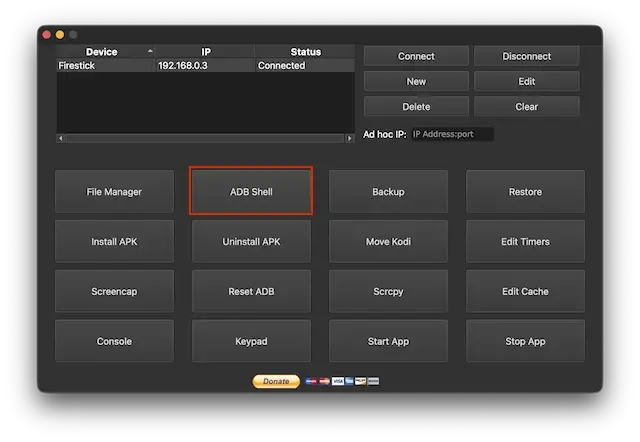
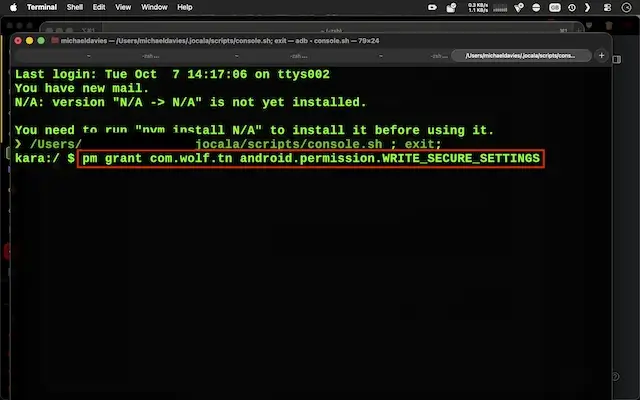
- This will open up a shell in Terminal for you. Enter the following code and hit enter
pm grant com.wolf.tn android.permission.WRITE_SECURE_SETTINGS
- Now we are on the final stage
- Now go to My Apps and open Launcher Manager (if you don't see Launcger Manager in there Select App Library at the bottom and it will be in there

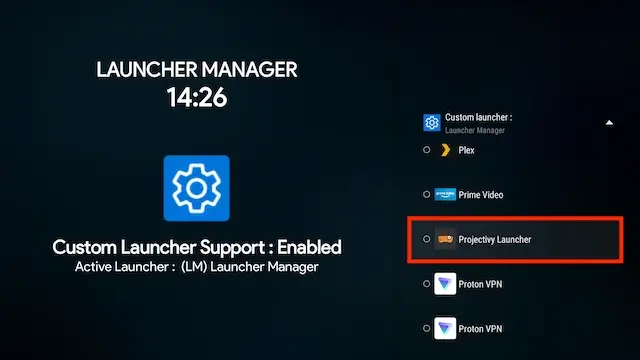
- Click on Custom Launcher Support: Disabled to turn it on
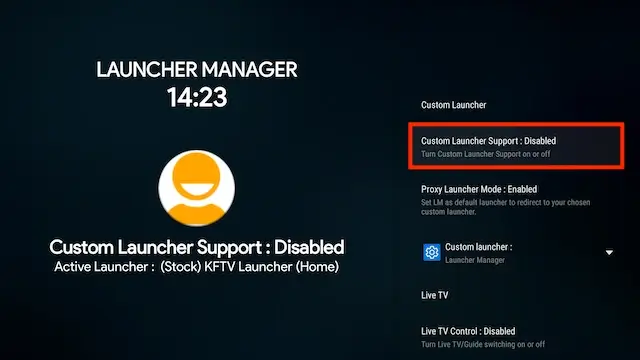
- Now select Custom Launcher
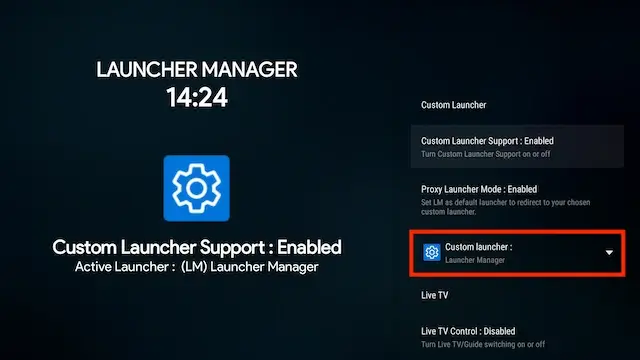
- Scroll down and select Projectivy Launcher (or any other custom launcher you have)
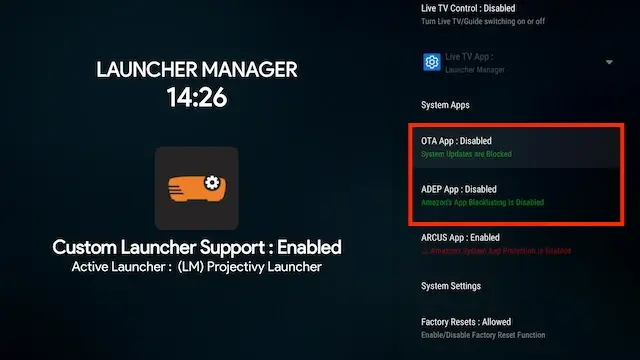
- You can now mess around and turn off OTA updates and blacklisting which could be the and many other settings.
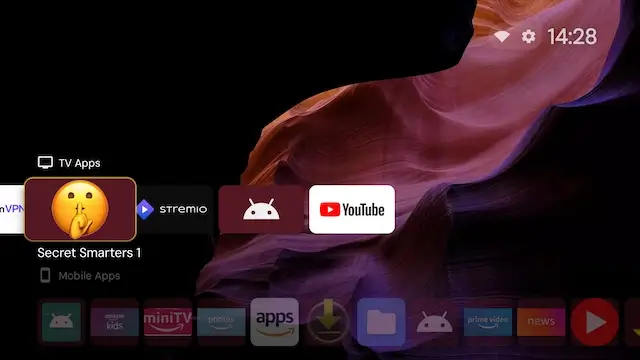
- If you click on the Home button on your Firestick remote you should now go straight to your custom launcher. It will look jittery at first. Don't worry it only lasts a few seconds. But that's it. We are really done and dusted now. Thanks for your patience
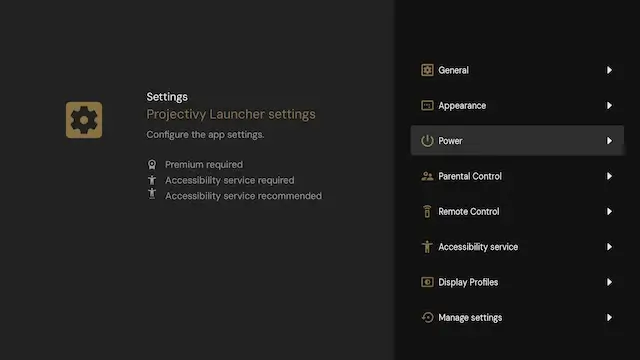
- You can also click on Projectivy Settings and have a play around with that now
- Protect your browsing data with a verified no-logs VPN
- Encrypt your connection to any Wi-Fi network
- Securely access streaming services & live sports
- 30 Days Money Back Guarantee
Use the link below to find good deals from IPVanish.
More Downloader Codes can be found here
Legal Disclaimer: This tutorial is purely educational. Seo-Michael.co.uk doesn’t own, host, operate, resell, or distribute any streaming apps, addons, websites, IPTV or services. The page contains some unverified services, and we are not certain whether they hold legal licenses to distribute the content. Seo-Michael.co.uk does not verify the legality of each app/service in all regions. Do your due diligence if you use any of the unverified apps/services, and stream only content that is available in the public domain. The end-user shall be solely responsible for the media accessed.
